

So you are here because you found that WordPress Permalinks should be Search Engine Friendly cause it will leave a good impact on your blog’s traffic and now you want to know How to Change WordPress Permalinks without Breaking Backlinks.
Well, let me share some background of this article, I was using Month and Name WordPress permalinks Structure without knowing this fact that it’s not recommended for WordPress SEO point of view.
`- Month and Name WordPress Permalink Structure mostly used for news based website where they are posting multiple posts in a single day.
After searching some SEO related improvements on my site BroExperts.com. I found that permalinks must be configured as SEO Friendly and the URL of the blog’s post should be in a /%postname%/ format i.e. (https://broexperts.com/postname)
But If you are going to change WordPress Permalinks Structure straight away after posting couple of posts on your blog there are chances that your blog start returning 404 Error and you might lose Organic Traffic which is coming from the Search Engine.

In this Guide I will show you how you can change WordPress Permalink Structure without disturbing Backlinks and Organic Traffic which is directly coming from the search engine.
You can solve this problem by using “301 Redirects” I will explain in a bit, Here I would recommend you if you don’t know what is Permalinks you can see this previous guide on WordPress Permalinks it will help you to understand what is permalinks all about and why it’s important.
How to Change WordPress Permalinks Safely
Now let’s talk about How to change WordPress Permalinks without Losing SEO
You can achieve this by enabling “301 Redirects” on your WordPress blog, 301 Redirection tells the browser which came on your website using an old permalink structure where the appropriate page is and also guide search engines that it’s now permanently changed.
- Before we move on I assume that you have already published few posts on your blog and now you decided to change WordPress Permalinks Structure.
Step 1: Change Permalink Structure from Month and Name to Post Name
Login to WordPress Dashboard and Go to Settings > Permalinks and select the permalink to /%postname%/ permalink
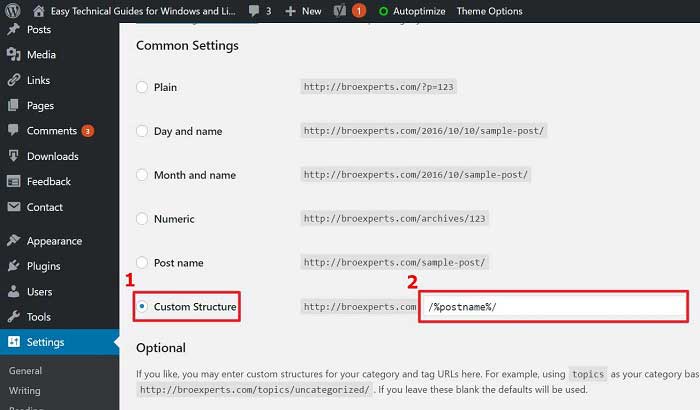
After you have changed new permalinks structure at this point you try to open any old permalinks, if you find any page returning 404 Error you need to fix this issue by adding permanent 301 Redirect in your .htaccess file.
Step 2: Enable 301 Redirects on WordPress Blog to Avoid 404 Error
You can easily enable 301 Redirects on your WordPress blog by using a redirection plugin. Here are two recommended methods:
- Method 1: Use a redirection plugin like “Redirection” or “Rank Math” which automatically handles 301 redirects when you change permalinks.
- Method 2: Manually add redirect rules to your .htaccess file using patterns specific to your old and new permalink structures.
For most users, using a redirection plugin is the safest and easiest method.

Step 3: Test Your Redirects
After setting up the redirects, test them by trying to access your old URLs. They should automatically redirect to the new URLs without showing 404 errors.
You can use online tools like Redirect Checker or simply try accessing your old post URLs in a browser to verify the redirects are working correctly.

After adding the 301 Redirects your old permalink structure will be redirected to the new /%postname%/ Permalink Structure.
Hope this guide will help you to setup 301 Redirect on your website if you still have any questions in your mind you can drop a comment below.
Did you find this guide helpful? Help others by Sharing it on Facebook, Twitter, and Google Plus!

